GeMarkt Blog · Practical guide
Home Office Art for Video Calls
Choose office art for both your working view and the camera. Test the actual video crop, head position, reflections and privacy before arranging the wall.

Arrange home office art after setting up the camera, chair and desk you will actually use. Check the picture in the meeting application’s video preview, with yourself in the seat. A wall that looks balanced from the doorway may become a cut-off frame or an image hidden behind your head on a call.
The room still belongs to you between meetings. Choose art you enjoy working near, then decide which of it should appear on camera. A professional background does not require an expensive painting or a wall full of carefully selected props.
Separate your view from the camera view
Art behind the monitor is for you; art behind the chair is usually for the camera. In a small room, those may be different walls with different light and space. Do not sacrifice the view you see all day merely to decorate the slice visible during calls.
Start by deciding whether you want the artwork to be noticeable, quietly present or outside the call altogether. A single print to one side may suit a simple background. A collection can also work, but check whether the camera turns it into a row of barely visible fragments.
If you share the room, include the other person’s chair, routes and belongings in the plan. A picture that works from one desk may sit directly behind another person’s head. Test both setups rather than assuming one camera view represents the whole office.
Set up the call before moving the art
Use your normal chair position and camera. Open the actual app, select the intended camera and look at its preview before making holes in the wall. Zoom’s current video settings provide a preview and camera selection; available settings depend on the device, permissions and app access.
Keep your working posture comfortable. Moving yourself into an awkward position to reveal a painting solves the wrong problem. If you use a laptop sometimes and an external camera at other times, test both. A change in camera position or framing can include a part of the room that was previously outside the shot.
Check settings that change the view. For example, Zoom documents auto-framing that adjusts the camera view to keep the person centred. A carefully placed picture may therefore move relative to the visible edges while you shift in the chair. Test the settings you plan to leave enabled.
Leave the picture visible beside you
Sit in the preview rather than arranging an empty background. A frame centred on the wall may line up directly behind your head. Moving the picture to one side can make more of it visible, but the useful distance depends on your real camera view.
The diagram compares two 16:9 preview boxes. The first places art centrally behind the speaker; the second offsets it. The drawing explains the overlap, not a measurement for positioning a print a fixed distance from your chair. Your camera may use a different ratio, crop or field of view.
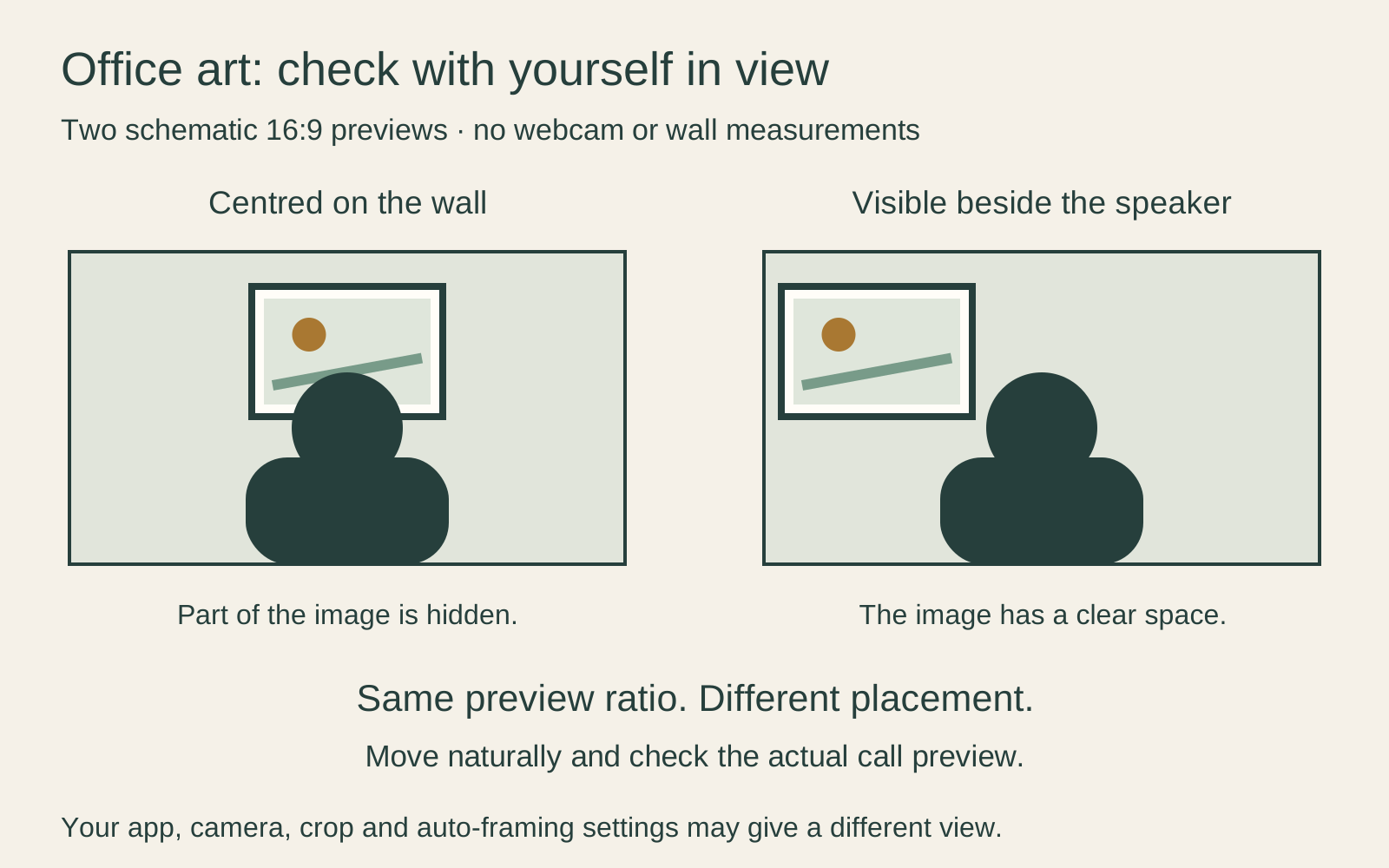
Move normally: lean forward, sit back and turn to another screen. Leave enough visual space that a frame edge does not repeatedly appear to emerge from your head. A paper template with a rough image preview is enough for this test.
Choose an image that reads at call size
Look at the video as a small meeting tile, not only full-screen. A broad landscape shape or a clear geometric composition may remain recognisable where a fine engraving becomes texture. That does not make detailed art unsuitable; it simply changes what other participants will notice.
If you want the image to start a conversation, choose one with a personal connection you are happy to discuss. If you prefer it to remain background, avoid relying on small text or a detailed scene that demands an explanation. Do not buy a “professional” image you dislike merely because it matches a home-office photograph.
Keep the original work intact. There is no need to stretch or flip a historical image to balance the camera composition. Reposition the frame or choose another work. Zoom’s mirror-preview option affects your own preview, so reversed lettering there does not mean the physical print should be reversed.
Check light and reflections
Test the background at the times when you normally call. A glazed print may show a window or lamp as a bright patch. Move a temporary template or change a lamp position where practical, then judge the result in the preview with your face visible too.
Do not brighten the room only to illuminate the artwork while leaving yourself hard to see. You are the subject of the call. A picture can be less prominent in video than it is in the room without needing to be replaced.
Preserve the print’s location needs as well. CCI’s paper-care guidance advises keeping paper art away from direct sunlight and heat. A place that gives a striking webcam background is not automatically suitable for the object.
Remove private information from the room
Look for addresses, client names, calendars, family photographs, certificates and reflections revealing another part of the room. These may matter more than the art. Move information you do not want to share out of view rather than assuming participants will not enlarge the video.
Background effects are useful options, not a guarantee of secrecy. Microsoft’s Teams background guidance explicitly warns that blur or replacement may still leave sensitive information visible. Check the physical background first, then test the effect with ordinary movement.
If privacy matters more than showing the room, a plain arrangement or camera-off participation where appropriate may suit the call better. Art is optional; there is no need to expose personal material to make the background look interesting.
Fit the art around normal work
Check that the position does not interfere with shelves, doors, adjustable equipment or cables. Avoid a precariously propped frame that needs moving every time you use the desk. Choose a suitable mounting method for the complete frame and wall, not whatever attachment happens to be in a drawer.
A small wall can still hold a meaningful picture. Measure the finished frame and test its outline before buying. If the room serves several purposes, our small-space art guide helps separate the main view from every available patch of wall.
Make a repeatable final check
Keep a private reference image of the setup without including sensitive material. Note the chair and camera positions if they tend to move. Before an important call, check the selected camera, visible crop, reflections and background rather than assuming yesterday’s arrangement is unchanged.
Finally, step away from the camera and look at the room. The art should still be something you want to live with when the meeting ends. A useful office background supports the call without turning your working space into a permanent set.
Editorial record
About this article
- Author
- Publisher
- GeMarkt
- Published
- Reviewed
- Internal source & rights check. Conducted by GeMarkt Research Review. This is an internal editorial check—not independent peer review.
- Source standard
- Buying guide source standardSeparates measured or first-hand evidence from general guidance and keeps practical limits visible.
Found a claim that needs checking? Report a factual error.