Screen 1
Choose an image to prepare this screen.
Download PNGOne view. Your actual screens.
Different resolutions. Different screen sizes. Arrange your monitors, move the picture, and save a separate wallpaper for each one.
One scene, your screens
Tell us each screen’s resolution and physical size. Move one image across the preview, then save a separate PNG for each screen.
PNG, JPEG or WebP · up to 30 MB and 80 megapixels. Processing stays in your browser. Use an image you have permission to use.
No image loaded yet.
Choose an image to begin. Nothing is downloaded automatically.
Drag the image inside the preview, or use the position controls. The spaces between screens hide part of the scene, just like real bezels.
Prepare one file at a time. Changes to the image or layout clear previous download links.
Load an image to check source quality.
Choose an image to prepare this screen.
Download PNGChoose an image to prepare this screen.
Download PNGChoose an image to prepare this screen.
Download PNGDesigned for two or three flat, square-pixel screens in a row or column. This preview is not a guarantee for curved monitors or unusual scaling. Save each file, then choose it for the corresponding display in your system’s wallpaper settings. It is not one stretched “span” file.
Why inches matter
A 27-inch 1440p monitor and a 24-inch 1080p monitor do not have the same pixel density. This tool maps your picture over one shared physical area, then samples each screen separately. It keeps a feature’s physical size consistent instead of simply cutting the picture into equal pixel widths.
Measure the visible screen diagonally, corner to corner, in inches—not the outer case. The gap is the full distance between the lit edges: both bezels plus any space between them. The calculation assumes flat, coplanar screens and square pixels. Curved screens, angles and measurement errors can still affect the join.
No. The saved PNG can match a 4K screen’s dimensions, but enlargement cannot restore missing source detail. The tool shows each screen’s enlargement factor and asks before allowing it. Check each original’s native dimensions on its detail page; use a larger source for sharper multi-screen results.
The preview fills the complete monitor arrangement without stretching the image. Edges outside that arrangement are cropped, and the section behind the bezel gap is deliberately absent from the files. Drag the image or use the position sliders to choose what stays visible.
Open Settings → Personalization → Background and use Picture. Add the saved images, then right-click an image preview to choose its display where that option is available. Match files by their physical position in your layout: this tool’s screen numbers do not detect Windows display numbers. These files are already separated; do not span each one across all screens.
Microsoft notes that per-monitor picture selection is unavailable when using multiple virtual desktops. Check your version’s options in Microsoft’s background guide.
Open System Settings → Wallpaper and add the saved images. Choose the corresponding image for each display using the options available in your macOS version. If you want different images, do not enable the option that repeats the same wallpaper on all Spaces and displays. See Apple’s Wallpaper settings guide.
No. The file you choose is processed inside your browser. It is not uploaded, added to a URL or stored by this tool. A built-in design is fetched only when you choose to load it. Downloads are new PNGs, not changes to your original file; original metadata and colour profiles are not preserved.
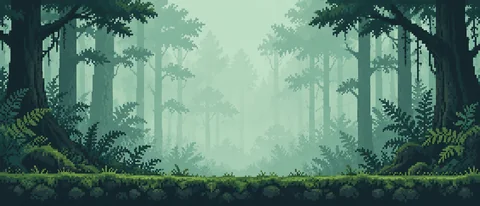
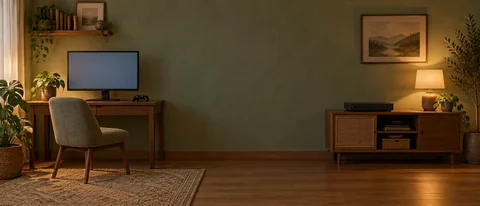
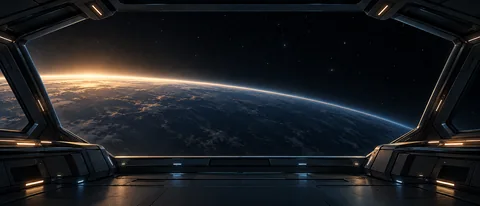
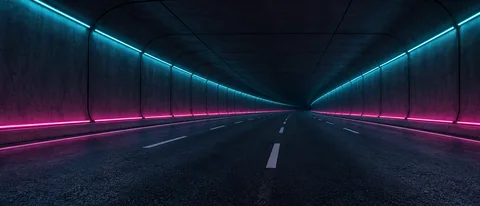
Each design opens with the tool below its preview and shows its own native dimensions. These are small original files, not high-resolution multi-monitor masters.